Armor Stand Studio Download
Client mod · Fabric · Minecraft 26.2

Pose armor stands without the book.

Armor Stand Studio is an editor for the armor statues on our server. Look at a stand, press N, and change its pose, rotation, gear and position with a live 3D preview. It works without op. It uses the same /trigger commands as the Armor Statues book, so you can use it anywhere you could use the book.

Nopens the editor
3 blocksediting range
~1 / secchanges reach the stand
No opworks for every player
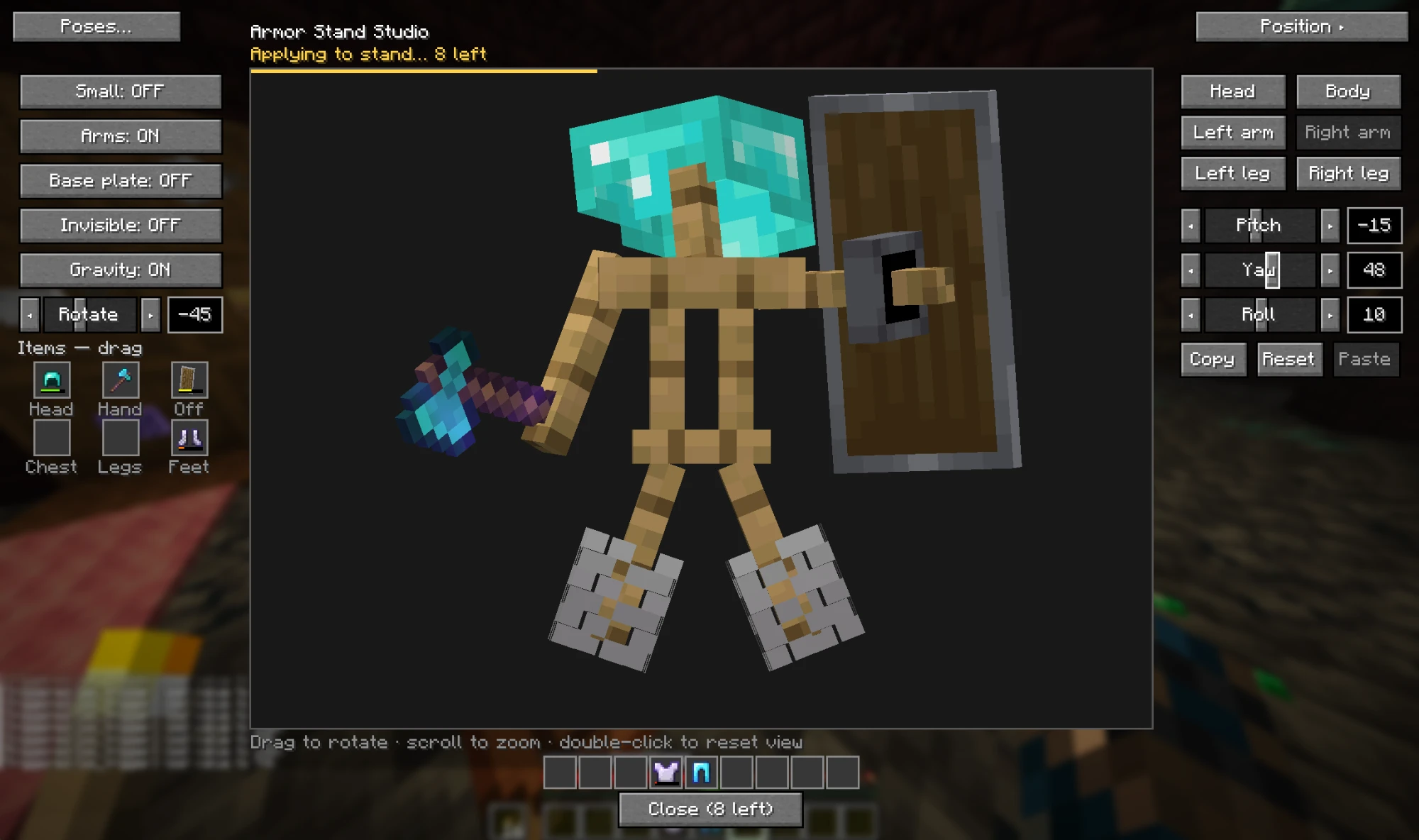
The editor: toggles and item slots on the left, a 3D preview of an armor stand with a diamond helmet, axe and shield in the middle, and body-part angle controls on the right. The status line reads 'Applying to stand… 8 left'.
The editor while it applies a new pose. The yellow line over the preview is the progress bar.
Demo

See it used

One minute, no sound: open a stand, pose the arms, give it a helmet and a shield, then nudge it into place.
Install

Set up in four steps

Only you need the mod. The server already runs Vanilla Tweaks Armor Statues, and other players see your edits the same way they see edits made with the book.

  1. Install Fabric for 26.2

    Run the Fabric installer, choose Minecraft 26.2 and install. Loader 0.19.5 or newer.

  2. Add Fabric API

    Download the 26.2 version of Fabric API and put it in your mods folder.

  3. Add Armor Stand Studio

    Put armorstudio-2.1.0.jar in the same mods folder. On Windows with the normal launcher that is %appdata%\.minecraft\mods.

    Download .jar
  4. Start the Fabric profile

    Pick the fabric-loader-26.2 profile in the launcher, start the game and join the server.

Open the editor

Look at a stand and press N

The editor opens with the stand's current pose, settings and gear. Every change you make is sent to the real stand while you work.

RuleWhy
Stand within 3 blocksThe Armor Statues book only reaches 3 blocks. Further away you get “Too far”.
It must be the nearest standThe book always edits the closest stand. If another one is closer, move until yours is nearest.
Stuck in a block? Still fineA stand pushed into a wall or floor can be opened. Look at where it is.
Locked stands can't be editedStands locked with the book, and marker stands, are ignored. The editor says so and sends nothing.
Other key than NWith Mod Menu: Mods → Armor Stand Studio → Configure, click the key and press a new one. Without it: Options → Controls → Key Binds → Miscellaneous → “Pick up armor stand (open editor)”.
The editor

Everything on one screen

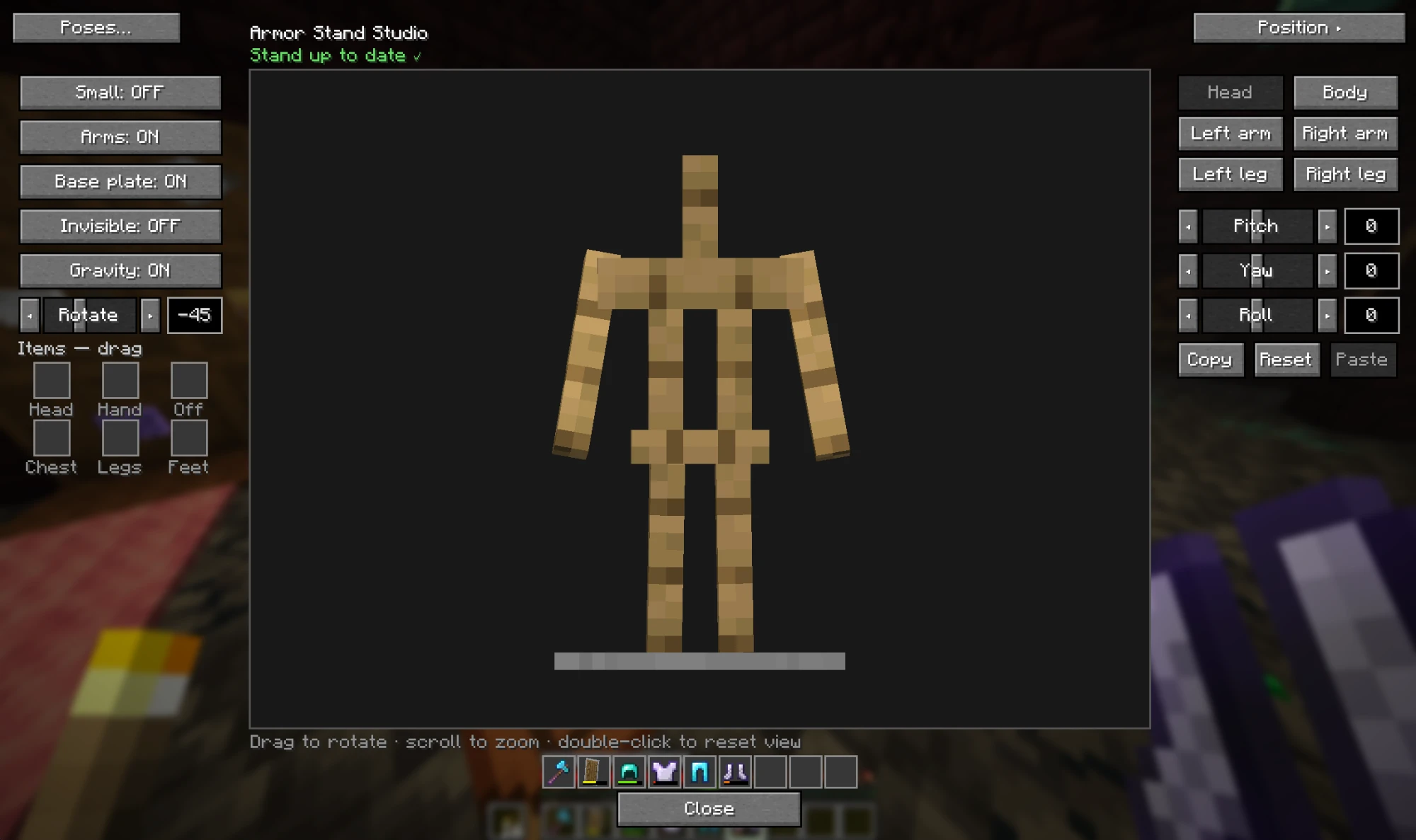
Settings and items are on the left, the preview is in the middle, and body-part angles are on the right. Drag in the preview to turn it, scroll to zoom and double-click to look from where you are standing again.

A plain armor stand in the editor with Head selected and Pitch, Yaw and Roll at 0. The left column shows Small off, Arms on, Base plate on, Invisible off, Gravity on and Rotate -45.

Pose each body part

Pick Head, Body, an arm or a leg on the right, then set its angles.

  • Pitch, Yaw, Roll: drag the slider, click ◂ ▸ for 1°, or type an exact number from −180 to 180.
  • Scroll over a slider for 1° steps. Hold Shift for 10°.
  • Reset puts the selected part back to its default angle.
  • Copy takes the whole pose and settings. Paste puts them on this or another stand.
  • Poses… saves poses by name so you can reuse them later.
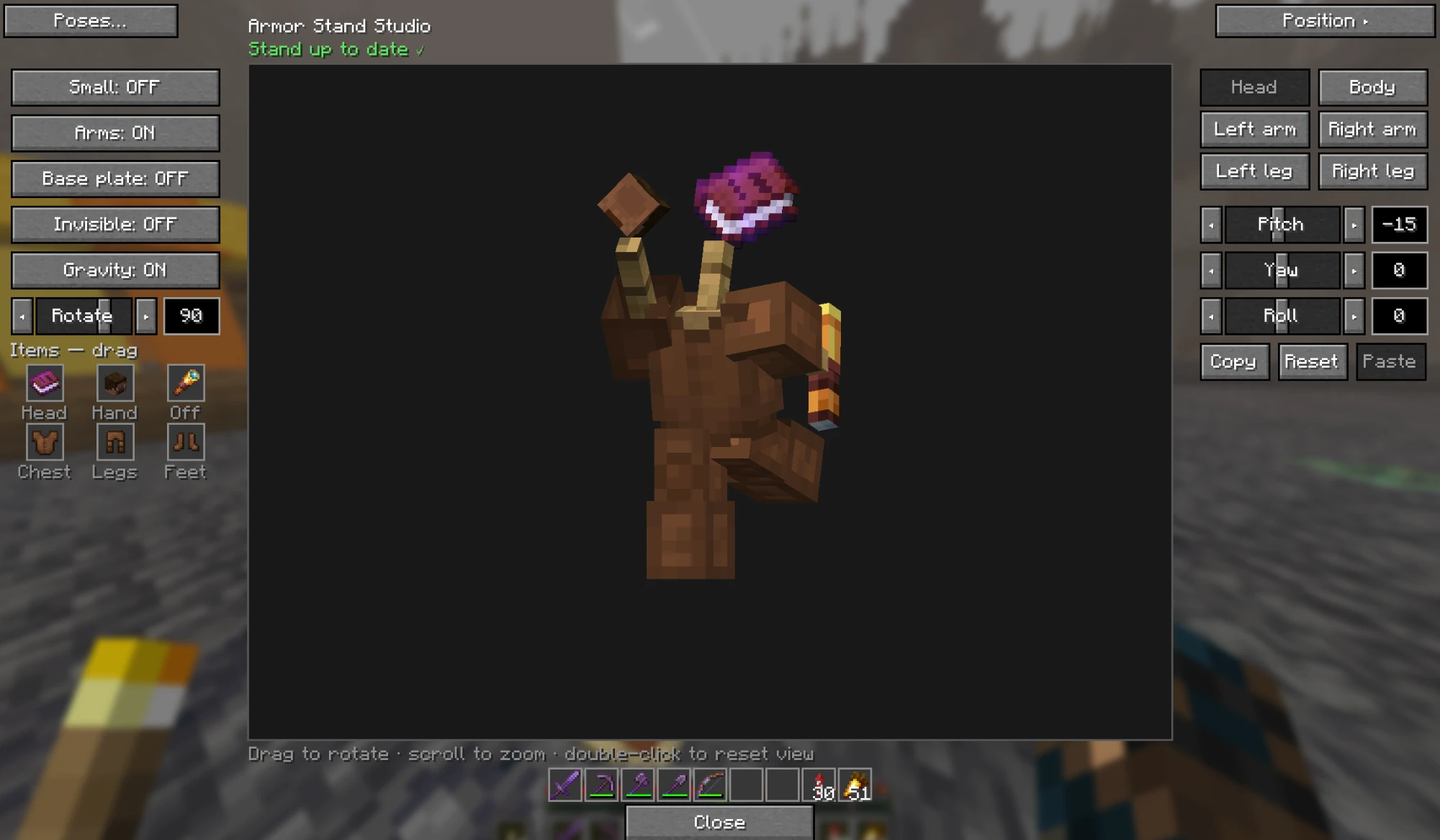
A stand in leather armor holding a torch, with an enchanted book on its head, turned to Rotate 90 and Base plate off. The status reads 'Stand up to date' in green.

Stand settings

The buttons on the left switch the stand's settings on and off.

  • Small, Arms, Base plate, Invisible and Gravity.
  • Rotate turns the whole stand. It lands within about 4° of the number you set.
  • Turn Gravity off before you move a stand up into the air, or it falls back down.
Item slots on the left: diamond helmet in Head, a diamond axe in Hand, a shield in Off and boots in Feet. The hotbar under the preview holds a chestplate and leggings.

Give it gear

Your hotbar is shown under the preview. Drag items between it and the six stand slots.

  • Drag from the hotbar onto a slot to put an item on the stand. Drag from a slot onto an empty hotbar slot to take it back.
  • Drag between Head, Hand and Off to swap them around. Armor stays in its own slot.
  • Shift-click a hotbar item to send it to its slot. Hand items go to the hand first, then the off hand. If both are full, the hand item is swapped and comes back to you.
  • Shift-click a stand slot to send the item to your first empty hotbar slot.
  • Turn Arms on before you give the stand something to hold.
  • A stack only goes into an empty slot. To replace an item, use a single one.
  • Slots with a blinking yellow border are still on their way. You can keep dragging.
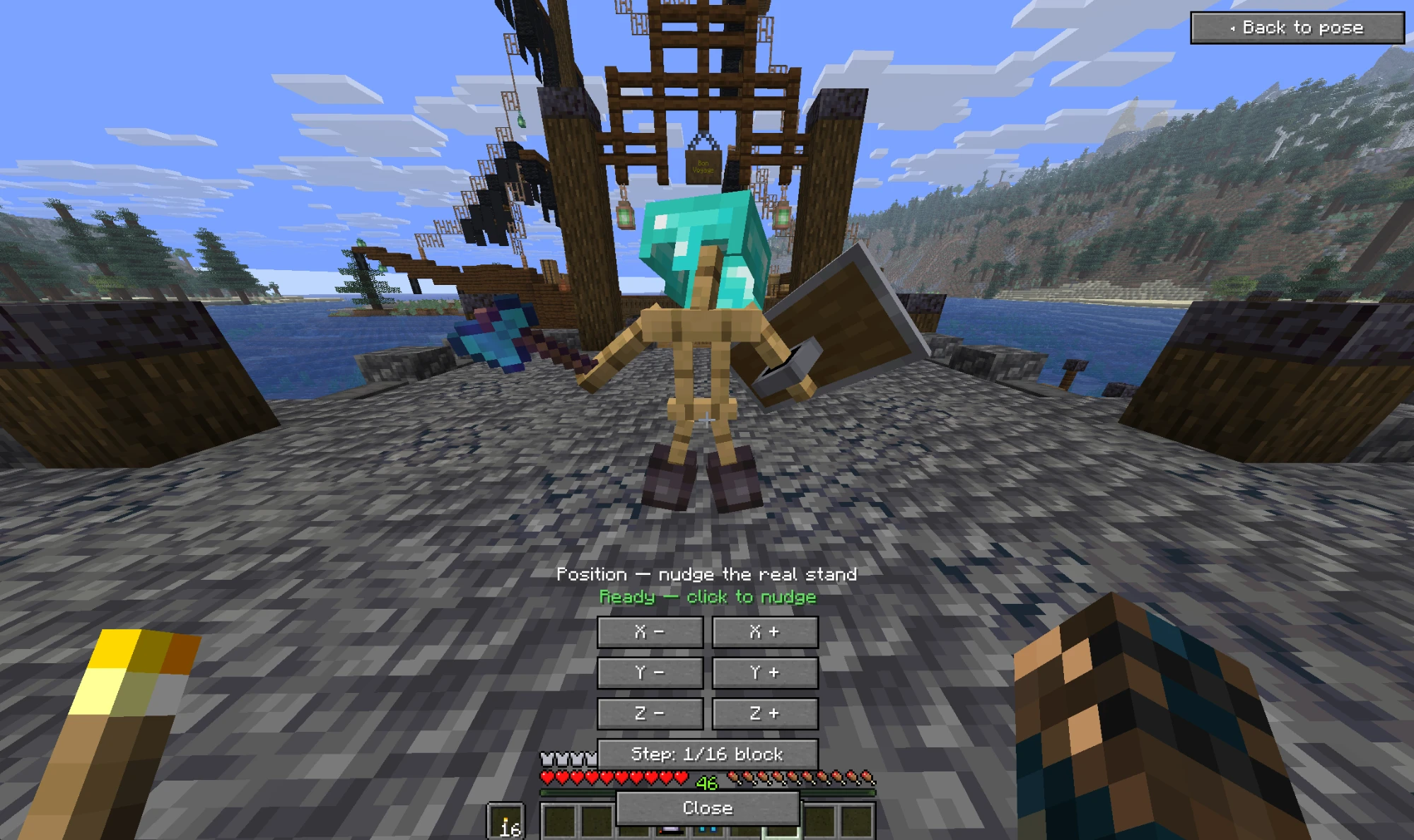
Position mode: the real armor stand on a stone pier, with X, Y and Z minus and plus buttons and a step size of 1/16 block.

Move it into place

Click Position ▸ to hide the editor and see the real stand in the world.

  • X − / X +, Y − / Y + and Z − / Z + move the stand one step.
  • The step button cycles between 1/16, 3/16 and 1/2 block.
  • Stay within 3 blocks. If the stand moves away from you, follow it.
  • ◂ Back to pose returns to the editor.
Live sync

How your changes reach the stand

The server applies one change per second for everyone using the book, and the editor sends as fast as that allows. A small tweak takes a second or two; a whole new pose can take 20–30 seconds. The line under the title tells you what is going on.

  • Checking VT targets this stand…First change of a session. The stand glows for 3 seconds to confirm the right one is selected.
  • Applying to stand… 8 leftChanges are on their way. The number counts down as they land.
  • Stand up to date ✓The real stand matches the preview.
  • Another stand is closerPaused. Move so your stand is the nearest one and it carries on.
  • Target stand out of rangePaused. Get back within 3 blocks and it carries on.
  • VT won't edit this stand (locked?)The stand is locked. Nothing is sent.

Closing early: while changes are still pending, the Close button shows how many are left, for example “Close (8 left)”. Closing then asks first, because anything not yet applied is dropped.

Reference

Controls

InputDoes
NOpen the editor on the stand you are looking at
Drag in previewTurn the view
Scroll in previewZoom
Double-click previewReset the view to the angle you see the stand from
◂ ▸ next to a slider−1° / +1°
Scroll over a slider or box±1°
← → on a selected slider±1°
Shift+any of the three above±10°
Type in the number boxExact angle, −180 to 180
Drag an itemMove it between your hotbar and the stand
Shift+click an itemQuick move to the stand, or back to your hotbar
Esc or CloseClose the editor. Asks first if changes are still pending.
FAQ

Questions and limits

Why is it slow?

The Armor Statues datapack handles one change per second. Ops could go faster with commands, but this mod is built to work for everyone, so it uses the same route as the book. Stay close to the stand until you see “Stand up to date ✓”.

Why did a stand glow for a moment?

That's the check at the start of a session. The editor asks the datapack to highlight the stand it is about to edit, so nothing goes to the wrong stand. If you see a stand glow briefly, someone has started editing it.

Can I make a stand lie down?

No. Each body part turns around its own joint and the stand itself always stays upright, so it can't lie flat. A tilted body turns around the neck and comes loose from the legs.

Where are Glowing, Invulnerable, Scale and Marker?

Those need op commands. The book has no trigger for them, so the editor leaves them out instead of offering buttons that wouldn't work for you.

Rotate ends a few degrees off

Your game only sees the stand's direction in steps of about 1.4°, so the editor stops once it is within about 4°. For an exact angle on a single part, use the part's Yaw instead.

Does anyone else need the mod?

No. It runs only on your client. Other players see the stand change just as if you were using the book. The server owner has said the mod is fine to use here.

It says “Too far” or “Another stand is closer”

Move so the stand you want is within 3 blocks and nearer to you than any other stand. With stands close together, stand on the far side of the one you want.